Articles by "Google Adsense"
Showing posts with label Google Adsense. Show all posts
Free Download Registered Softwares & Games Full Version. Blogger, Facebook & PC Tips & Tricks. Free Download Mobiles Softwares, Games

Pros

  • Works well with the existing infrastructure.
  • Provides SSO for Google Apps and most of other SaaS apps.
  • Offers a comprehensively secure login system

Cons

  • Difficult to implement if not supported by service providers or manufacturers.
  • Prospective incompatibilities in implementation of Single Sign On technique for a large number of applications simultaneously.
Security Assertion Markup Language or SAML is an XML standard which allows secure web domains to trade user authorization and authentication data. To provide the partner companies with total control over the authentication and authorization of hosted user accounts which can access web-based applications like Google Docs or Gmail, Google Apps has put forward a SAML-based Single Sign-On (SSO) service.
Google SSO TechniqueUsing the SAML model, Google partners act as identity providers and can control username, passwords and other profile related information which are used to identify, authorize and authenticate users for Google hosted user applications. Google acts as the service provider and offers services such as Google Docs, Google Calendar, Gmail and Start Pages.

Applicability

It is important to that you should know that Single Sign On technique is applicable only to web applications. If anyone wants enable users to access Google applications with a desktop client such as Microsoft Outlook, it would only offer POP access to Google applications. So you must provide your users with functional passwords and synchronize these passwords with your internal user database by using the provisioning API.

SSO’s SAML Platform

The Google Apps Single Sign On technique is based on the specification of SAML v2.0. Almost all widely known vendors support SAML v2.0.

How Does a Google SSO Login URL Work?

Here we try to explain how to log into a hosted Google Apps through a Google associate operated Single Sign On service.
SAML Transaction Steps in Google SSO Login
  1. Firstly, the user tries to access the hosted Google Apps login page such as of Google Docs, Gmail or another of Google’s services.
  2. A SAML authentication request is generated by Google. The URL for the partner’s Single Sign On (SSO) service is embedded with the SAML request generated by Google.
  3. A redirect link is sent to the user’s browser by Google. The encoded SAML authentication request which is to be submitted to the associate’s SSO service is included in the redirect URL.
  4. The SAML request is decoded by the partner and the URL is extracted. The extracted URL is used for both the user’s destination URL and Google’s Assertion Consumer Service. Thus the user is authenticated by the partner.
  5. Now a SAML response is generated by the partner containing the user’s username. This newly generated response is digitally signed with the associate’s private and public RSA/DSA keys.
  6. The partner encodes the RelayState parameter and the SAML response and sends back that information to the user’s browser. A mechanism is provided by the partner so that the user’s browser may forward the information to Google’s Assertion Consumer Service (ACS). For example, the partner could embed the destination URL and SAML response in a form and include a JavaScript on that page which will automatically submit the form to Google. The partner could also provide a button which the user can click and submit the form to Google.
  7. The SAML response sent to the Google is verified by the Google’s ACS with the help of the partner’s public key. If the verification yields successfully, the user is redirected to the destination URL by the ACS.
  8. Now the user finally can access the Google Apps page and is logged into his account.
no image
Free Download Registered Softwares & Games Full Version. Blogger, Facebook & PC Tips & Tricks. Free Download Mobiles Softwares, Games
Before creating an adsense account realize this thing in your mind that you never ever this guys or make fraud with Google and please try to avoid the below describe 10 Major mistakes
1.Don't click on your own ads. Because 70% of the peoples has been banned due to clicking on their own ads. In Google's terminology it is said "Invalid Clicks".
2. Also make sure that you are not in the black list before creating new adsense account. It will make you more difficult to survive in Google's world and your account 100% sure will banned.
3. One account is enough for many websites suppose you have two hundred websites then one account will meet the requirement as like single account. Google has given the permission to put your ads on any website.
4. Don't use the forcing words that make the people to click on them.
For example:
Click Here
Useful links
Click and Win
But you use following words that are more suitable.
Advertisement
Sponsored By
5. Make sure that your website should support Google recommended language. (Note: Google Does Not Support Urdu language.)
6. Don't Pass your adsense JavaScript code to anyone via E-mail Because Google have a deep eye on Emails.
7. Don't display adsense on a Popup window because Google strictly prohibit this thing.
8. Don't put your ads on a webpage that has no content or there is no data or information.
9. Don't display your ads on a page where you are getting information from user like:
Application Form
Registration Form
Login Page etc.
10. Avoid using any tool that clicks automatically on your ads. Google Has a bull hawk eye on these tools.
For example:
Auto Clicker
Click Sensor

Free Download Registered Softwares & Games Full Version. Blogger, Facebook & PC Tips & Tricks. Free Download Mobiles Softwares, Games

How to Link YouTube with your Adsense Account  


Last time we informed you about YouTube partnership program and I’m very sure many of you must have applied for the same to monetize your upload videos on YouTube. Here I’m sharing how you can link your YouTube account with your adsesne account.
Once YouTube will approve your application, you will get an Email to accept terms and link your adsense account. If you use Gmail login for YouTube, you can still link any other adsense account with your YouTube account.
This is the screenshot of first Email from YouTube after application is approved:
email........
When you will click on Tutorial Completion and Contract, you will be taken to page where you have to read and click on next. After reading all the terms, you will be taken to Content licensing and VOD agreement page. Accept the policies and on the next page you will be taken to add Adsense login ID, last 5 digit of your phone number and Pin code.
link-google-adsense

Granting access to YouTube from Google Adsense account:

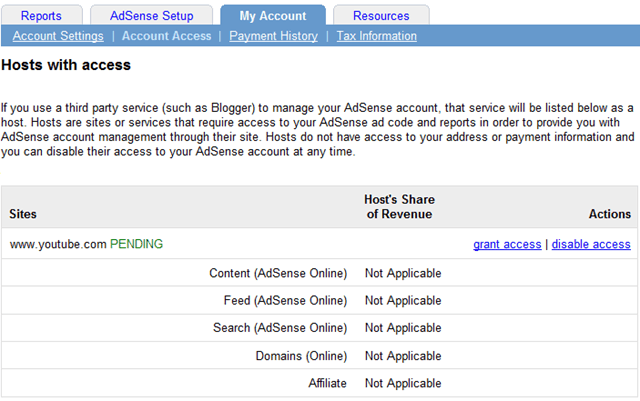
Login to your Google adsense account and you will see a notification saying, “You have requested to use AdSense on a partner website. In order to earn revenue on their site, you’ll need to grant them access to your AdSense account”.
adsense-account
Click on review account access and grant access to YouTube.
youtube-grant-access
Once you have done all the above mentioned steps, you will get an Email asking you to verify the access of YouTube to your adsense account. Once you approves it, it will take some time before Adsense ads will start displaying on your uploaded YouTube videos.
I hope this tutorial will help all those who are planning to monetize YouTube videos using Adsense.

Free Download Registered Softwares & Games Full Version. Blogger, Facebook & PC Tips & Tricks. Free Download Mobiles Softwares, Games

How to Invite other users to use Your Adsense account

How many of you blog in a team or have two or more friends managing a Blog? Sharing the same Adsense account for making money from your blog and use single Adsense login id to see the stats. Now, here is a good news for all such users who share their Adsense account with someone. Adsense team added multiple users options, which will let you add another users to access your Adsense account.
  • Similar: Google plus multiple manager for Pages

Adsense Multiple users feature:

This new feature of Adsense will let you add any non existing Adsense users to manage your Adsense account. Right now, there are only two level of user permission that can be granted: Admin and standard users.
When you add a new user to manage/access your Adsense account as admin rights, he can do following things:
  • Can edit, manage any part of account.
  • Can add or remove users
  • Can see the list of users who have access to your Adsense account
Standard Adsense users can not see the list of users who have access to your Adsense account and they can’t add or remove any existing users. This is useful, when you want to give someone access to Adsense account with limited permissions.
Though, there are many limitations to this multiple user Adsense account:
  • You can’t add a user with existing Adsense account
  • You can’t add a user whose Adsense application is rejected earlier
  • If you invite a Google apps user, Adsense should be enabled from dashboard

How to invite other users to use your Adsense account:

Here I’m sharing a quick tutorial, which you can follow to invite other users to use your Adsense account. Login to your Adsense account and click on Account settings in left sidebar. Scroll down to the bottom and there you see an option to “Users with sign-in access (beta)”, there you can add Email address of user and send an invitation. Invited user will have 30 days to accept your invitation and after that invitation will be expired.
Adsense Invite users
If you try to invite a user with existing Adsense account or a rejected Adsense account, you will get a message saying “The email address is currently being used by an existing AdSense account.“ Once a user is invited, you can give Admin rights to user by ticking the Administrator box.
Now, this is a very handy feature but I suggest you to use it carefully and invite users only whom you trust. Adsense team will also send you an Email, as new user is added into your account or any users access level is changed. This is very useful to ensure the security of Adsense account.

Free Download Registered Softwares & Games Full Version. Blogger, Facebook & PC Tips & Tricks. Free Download Mobiles Softwares, Games

Basic Guide] How to Create Adsense account?


As a blogger you must have heard of Adsense, which is one of the best contextual ad network from Google. In this post we will see how you can create adsense account for your Website. There are many Adsense alternatives, but no matter what network you try Adsense is certainly the best. Though, if you are good with marketing, you can look into Affiliate marketing and my post on Affiliate or Adsense will give you my personal insight.
I remember when I started Blogging, Adsense was something an alien word for me. While signing up for Adsense, I had to take help from my friends and I was not sure if I was doing everything right. For beginners, who are not aware of Adsense:  It’s  an advertisement program for publisher started by Google[ See Wiki details]. They place contextual ads on your blog and you will get paid when someone clicks on ads.
Here I’m compiling a basic guide for beginners who are not sure of, how to apply for  Adsense.
Create Adsense account
There are few requirements which you need to follow before you can apply for Adsense. You need to have a website. You should be above 18+, else apply using your parents name.

Steps to create Adsense account:

Adsense has changed the account approval process lately and here is new adsense account approval process:
  • Sign up for Adsense
  • Add Adsense ads into your Blog
  • Your account will be reviewed and rejected.
Though new adsense account approval process is quite lengthy and now it’s 2 way adsense account approval process, but it will help us to maintain the quality of adsense. Also before applying for adsense make sure your website is following adsense policies.
I believe, by now you have done your research on the above and here is how  you can sign up for Adsense.

Step by Step guide to Create Adsense account

Go to Signup page for Adsense.
Website details:
Website-details
Add your website details, language and put a tick mark on first two box which says
  • I will not place ads on sites that include incentives to click on ads.
  • I will not place ads on sites that include pornographic content.
In Website URL, it should be your blog address and make sure to add it without http://
Adsense contact information:
adsense-contact-information
This is most important part and I remember making couple of mistakes while signing up. Most important is Payee name. Make sure to use the same name under which you have a bank account. As Adsense will be sending you a check under that name. If you make a mistake here, changing payee name of your account would be difficult for many countries like India.
Rest add your contact information and fill other details.
Accept Adsense policies:
adsense-policies
Read Adsense policies and put a tick mark in front of all three boxes.
Once done click on Submit and on the next page, you can review your details. Make sure that all the details are accurate and up to date.
Signing up Email:
Adsense-Email-address
You can use your current Email address to sign up or you can create a new Gmail id for Adsense. For fast approval, I would suggest you to sign up using your Google apps address. i.e admin@domain.com. [ Read: How to set up Google apps for domain ].
In my case, While I tried signing up using generic @gmail address, I was rejected 4 times, but later on when I applied using domain Email address, it worked and I got Instant adsense approval.
Submit Adsense Tax Information
Once you have signed up for Adsense, you need to add adsense codes into your blog. Adsense team will review your application again after adding the ad codes, and it will activate and will send you Adsense Pin. Which takes 1-2 months depending upon geographical position.
So, after every thing is set up, in order to get paid from Adsense, you need to fill two information:
  • Please submit your Tax information
  • Please Enter your Pin
You will also need to submit Tax form, depending how you are entitled to do business. For certification of No U.S activities, and for Indian Adsense publishers, you can fill this tax info:
Indian Publisher Tax Info Adsense
Similarly, once you receive the Pin, add it into your Adsense account and from the next month payment cycle, you will start getting paid. Minimum Payout for Adsense is $100.
I hope this guide will help you to create Adsense account. Just in case if you don’t have a Blog, you can refer to my earlier tutorial on how to create a BlogSpot blog. Meanwhile do share your tips on quick adsense approval?

no image
Free Download Registered Softwares & Games Full Version. Blogger, Facebook & PC Tips & Tricks. Free Download Mobiles Softwares, Games

5 ways to Boost Your Adsense Revenue

Google AdSense program has made it easier for webmasters to make money through a website. Webmasters who run an AdSense campaign will display Google's contextual Ads relevant to the content of their sites and thus encouraging visitors to click the ads and earn money for each ad click.
However you will earn very little AdSense revenue if you don't know how to optimize your AdSense ads on your website. Here are some tips to increase your AdSense earning:
1. Focus on one Adsense ad format. The Large Rectangle (336X280) ad format seems to work better than other ad formats because this format tends to result in higher click through rates (CTR). Another reason is that the ads will look like normal web links that visitors use to click on them. It doesn't matter whether the visitors know that they are clicking AdSense ads or not, as long as there are clicking, you earn AdSense commission.
2. Create a custom palette for your ads. Select a color that matches your website's background. If your site's background is white both, the color of ad border and background should set to be white too. Also the color of the ad title should be similar to coloe of the links in your website. This is to make your AdSense ads look like it is part of the web pages. Again, this will boost AdSense CTR.
3. Don't place your AdSense ads at the bottom of your webpages because it is proven to be less effective. Displaying your AdSense ads at the bottom is like hiding your AdSense and thus leads to low CTR and AdSense revenue. Try to put them in the place where people can see them quickly. You will be amazed how the difference between AdSense locations can make when you see your earnings.
4. Try to place your AdSense ads near rich content as visitors main focus usually are your content. There are several ways to insert AdSense ads into your content and one of the ways is place your AdSense just after the end of your content.
5. Try to automate the insertion of your AdSense code into the webpages using SSI (or server side included). Ask your web administrator if your server supports SSI or not. How do you do it? Just save your AdSense code in a text file, name it as “AdSense text”, and upload it to the root directory of the web server. Then use SSI, call the code on other pages. This tip is a time saver especially for those who are using automatic page generators to generate pages on their website.
These are some of the tips that have worked well for some who want to generate hundreds and even thousands on their websites. There are other ways to optimize your AdSense that produce high CTR also. You can learn more tricks by reading in AdSense and webmaster forums.
no image
Free Download Registered Softwares & Games Full Version. Blogger, Facebook & PC Tips & Tricks. Free Download Mobiles Softwares, Games

Requriments And Tips For Google Adesne:

 Many people had contacted me to clear some doubts regarding adsense. Most of them asked me about how to apply for adsense and what are its requirements. In this post i will introduce the minimum requirements and steps to apply for adsense.

Minimum Requirements

  • You need a full launched website (not under construction)
  • Your website must have a minimum traffic for getting some money from adsense.
  • Your website/blog must not contain a crush of keywords (High paying keywords)
  • The website theme must be related to the content of the site
  • Your website Should not have contents against adsense
  • Simple Internet Browsing knowledge is enough to start this program. No Previous experience needed
  • You must have a Bank Account to deposit the cheques which you will receive from Google.
  • If you are having a Blogspot blog, it must be older than 6 months.
  • Your blog/website must not contain illegal content, pornography and hate-related.
  • The website/blog must not have a crush of advertisements.

How to Apply for adsense

  • Submit your website, account and personal details that is needed to provide before joining adsense.
  • Wait for 1 – 7 days to get reply from adsense
  • If they ask you to confirm the domain, follow the instructions to confirm the domain
  • If they disabled your account, your website/blog not enough to apply for adsense.
  • If you are having a blogger.com blog, apply for adsense using the monetize link provided in the blogger.com dashboard.
For more about adsense, you can refer: www.google.com/adsense/policies
Free Download Registered Softwares & Games Full Version. Blogger, Facebook & PC Tips & Tricks. Free Download Mobiles Softwares, Games

So, 2011 is long gone and thus the Adsense approval tricks are going to be unuseful. The simplest of definitions for this thing is that now adsense will make its approving terms even harder and all the previous tricks won’t work now. So, what you need to try for a simple adsense ID is to use a new trick and thus it may bring an approved adsense ID to you. Do you know that after the previous Google Panda Update, the traffic of many of the sites have fallen and this simply means that now you will have to work even harder and try with new things to get an approved adsense ID. This may tell you to make your blog even more dynamic and trick free.
But, what to do if your blog doesn’t get approved the first time. You need to simply focus on this new trick. The Adsense IDs have been blocked and spammed in the previous year. While leading to removal of your name and site from the list of approved Publishers. You may also need to have some different pages of your own for approval and then you can use the approved ID to earn from your blog.


What you need?

An email ID(Gmail), a domain that is 6 months old, basic knowledge of HTML.

How to approve an Adsense ID?

  1. Firstly, you need to create a simple HTML based page.
  2. The page should be as simpler as possible, you can even create some images and logos for the page.
  3. Now, you need to host that page on your domain (top-level, and at least 6 months old).
  4. Now, after you do all of them, just create an Gmail ID.
  5. Fill up all the info properly and just use the same info with the Adsense Publisher form.
  6. Now, submit the form and be patient. The page will surely approve and get what you want(approved adsense ID).
So, the page will approve. But, why. The reason for that is the Adsense approval Algorithim which focuses on how simple the page is. So, keep publishing and keep earning. Good luck with the Google adsense Approval trick 2012.